

Placing Clips into a Project Timeline – FCPX

In this tutorial we will talk about using your keyboard to place footage into a project timeline.  The most obvious way to put footage into your timeline is to drag it there with your mouse.  But mice are for suckers!  You want to learn keyboard shortcuts!  You do, I swear!  Put all eleven ten of those chubby flesh sticks (that you call fingers) to work!

First highlight the clip that you would like to place into your timeline.

Since I’m teaching you how to do it all with your keyboard – Hit the “tab” key until you get to your clips in your browser.  Then use the arrow keys (up and down to switch clips, left and right to toggle frames) to get to your desired clip.  Set the beginning and end of the clip if you haven’t already by pressing “i” and “o” respectively.

Next hit “Q,” “W,” or “E” to put the clip in your timeline.
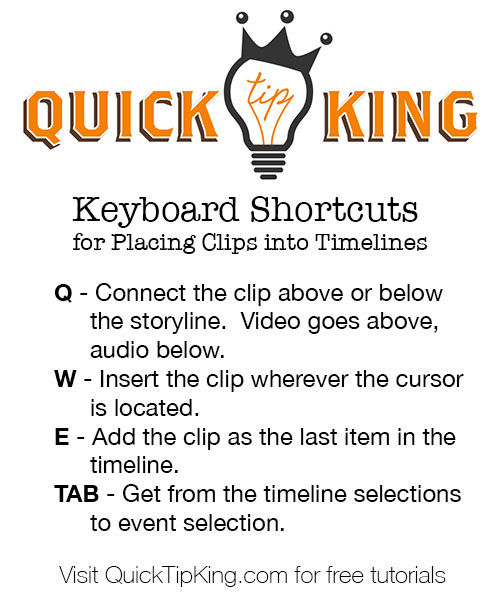
placing clips keyboard quick guide

Ohhh! Ahhh!  I made a fancy graphic thingy for you! Print it, pin it, save it, shave it into your dog!

Q – Connect the clip above or below the storyline. Video goes above, audio below.

W – Insert the clip wherever the cursor is located.

E – Add the clip as the last item in the timeline. TAB – Get from the timeline selections to event selection.

You can switch to placing video and audio, video only, or audio only with your keyboard or by clicking on the importing tool’s down arrow.

Video and Audio – Shift + 1

Video only – Shift +2

Audio only – Shift + 3

That’s how you can place clips into your project timeline without ever touching your mouse!  Save time, work those fingers!  God gave you 11 10 for a reason!

Did you find this tutorial useful?

Hit me up with your questions!


Linear Ken Burns in FCPX

The Ken Burns effect, named after the famed documentarian, has been one of the more handy tricks in FCPX but it has been handicapped by always being forced to “Ease In” and “Ease Out.”  These “easing” makes each move start and end on a complete stop and gently “eases” in and out of motion.   This effect can be good (read: almost never), but is not always desired.

Apple finally gave us, after two years, the ability to choose whether we wanted to ease in or out or both or none by adding the ability to do a “Linear Ken Burns.”

To apply a Linear Ken Burns first apply the Ken Burns effect.

First select the desired Clip and click on the transform button.

Linear Ken Burns 1It is located in the bottom right hand corner of the viewer window.  It looks like this picture.

Click on the small down arrow next to the icon and choose “Crop”Linear Ken Burns 2

Now on your viewer screen will be a box surrounding the edge of the screen with a dotted line and three options at the bottom:  Trim, Crop, and Ken Burns.

You guessed it- Click on Ken Burns.

This will add two boxes to your screen- the red one is the ending frame size; the green one is the starting frame size.   FCPX will created an animated movement to those two frames with the speed based upon the duration of the clip.  So, a short clip will have a relatively faster animation speed than a longer clip.  Play around to find the right settings.

After you have set up the frames right-click on the screen and choose “Linear.”

Linear Ken Burns 3

If you want the traditional “Ease In and Out” you can always change it back by following the above steps and by choosing that option.  If I have a series of photos that I am cross dissolving between, I like to have my first photo in the series ease in and the last in the series ease out.  I think it helps make it feel more like the beginning and end, respectively.

So there you have it!  That’s how you do a linear Ken Burns!

Hit me up with any questions!