

 Roles are a hidden little gem inside Final Cut Pro X. Upon import FCPX will automatically assign a role to your clips that’s usually fairly accurate. The default categories are “Video, Titles, Dialogue, Effects, and Music.”
If you are feeling frisky, you can add more specific roles by clicking on “Edit Roles…”
Think of roles like flexible tracks from any other editing software. You can mute, or (with a few more clicks) solo any of your tracks. It is also a great way to export stem tracks for audio editors. With roles you can quickly mute the effects and music track and export just the dialogue.
You can manipulate roles in three ways.
In the browser or timeline click on the link and then open the inspector. Click on the info tab at the top and then click on roles. You can use any of the keyboard shortcuts seen in the picture above but you’d have to be some kind of genius to keep those memorized, right? Fine, it’s not that hard. It’s just Control + Option + “the first letter of the role.” You can assign a new role to several clips this way.
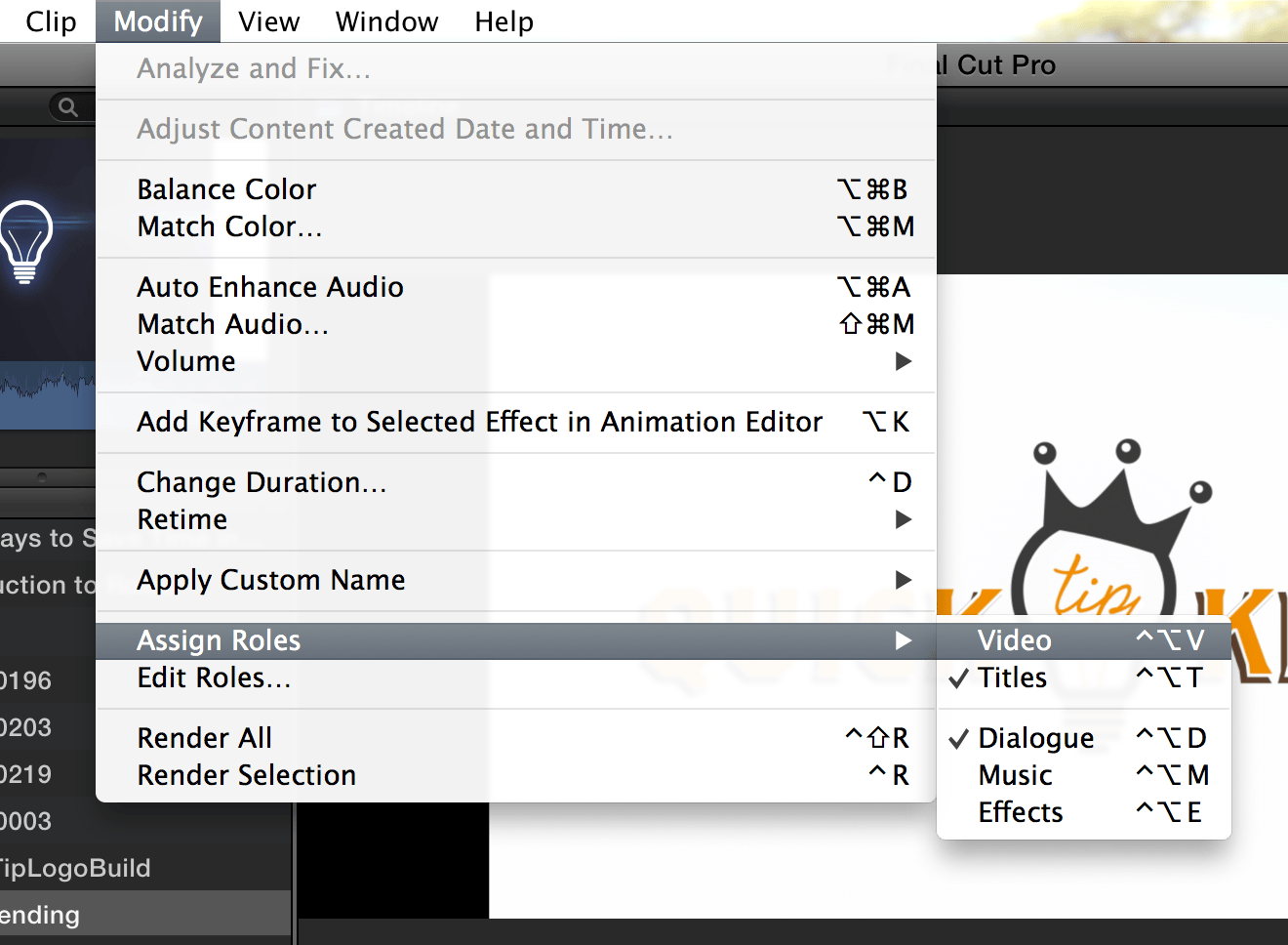
Modify>Assign Roles>”Desired Role”
The second way to assign roles is to by clicking on the clip and then selecting Modify>Assign Roles>Desired Role. This is for people that like to use that menu up top.
The third way that you can manipulate roles is in the timeline index. That’s the little used list viewer in the bottom left corner of FCPX. Click on that and then go to the “Roles” tab. Here you can mute and minimize different roles. This is where they feel more like tracks. Even though your audio sound effects may be scattered around your timeline, with roles you can quickly mute that “layer.” You can also minimize a layer for less ram usage and give yourself slightly more space to work with. However minimizing only truly works on audio.
Roles can be a quick way to help you save time and manipulate your timeline in the flexible way that only FCPX can.